
Filed under: Tutorials · YouTube Tests & Guides
Updated October 6, 2026. Creating a channel establishes your public presence. It does not automatically unlock every publishing feature or prove that a topic will attract viewers. Our setup demonstration should be read as an account-and-brand workflow, not a growth shortcut.
Prepare the public identity
Choose a channel name, an available handle, a readable profile image and one sentence explaining what viewers can expect. Review what will be public before using a personal name or photograph. You do not need to publish private contact details to make the channel useful.
Create the channel
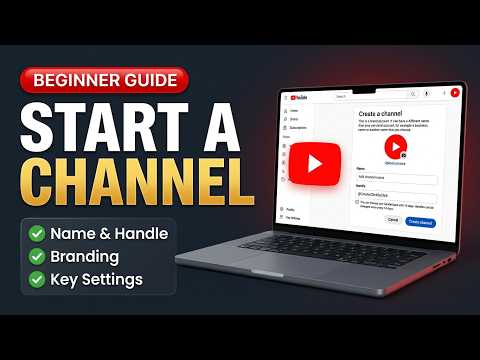
YouTube’s current instructions describe signing in, opening your profile picture, selecting Settings, then Account and Add or manage channel(s). Choose Create a channel, enter the name and handle, select a profile picture and confirm. A business or separate brand identity can use the channel-list workflow described on the same page.
Check the result before uploading
- Open the public channel page and check the name, handle and image.
- Write a short description of the actual content you intend to make. Remove promises you cannot support.
- Review the account selected in Studio so you do not upload to another channel by accident.
- Check feature eligibility before planning a custom thumbnail or a longer upload.
Feature eligibility governs access to tools. Verification is not a documented recommendation boost. Our article does not mean that verification has been performed on your account.
Make audience choices accurately
Base the audience classification on the content and the applicable YouTube guidance for made-for-kids content. Do not choose a setting because someone claims it will bring more views. An animation or a bright design alone is not a substitute for reviewing the intended audience.
Your first practical checkpoint
You are ready for the next stage when the public identity is correct, the right channel is open in Studio, and you understand which publishing features are available. Prepare one video with a specific visible result instead of spending days polishing an empty channel.
Continue with the first-video planning worksheet, then our upload checklist. Those are separate decisions from channel creation.
Prefer to watch the demonstration?
The written article above contains the essential answer. The public video is available as an optional walkthrough.