

A few rough notes are enough to start a presentation. The useful part is being able to change it afterward. In this lesson, we turn three recording reminders into a short photo-led deck, revise one headline and export a PowerPoint file. You can follow the same small exercise before trusting the workflow with a larger project.
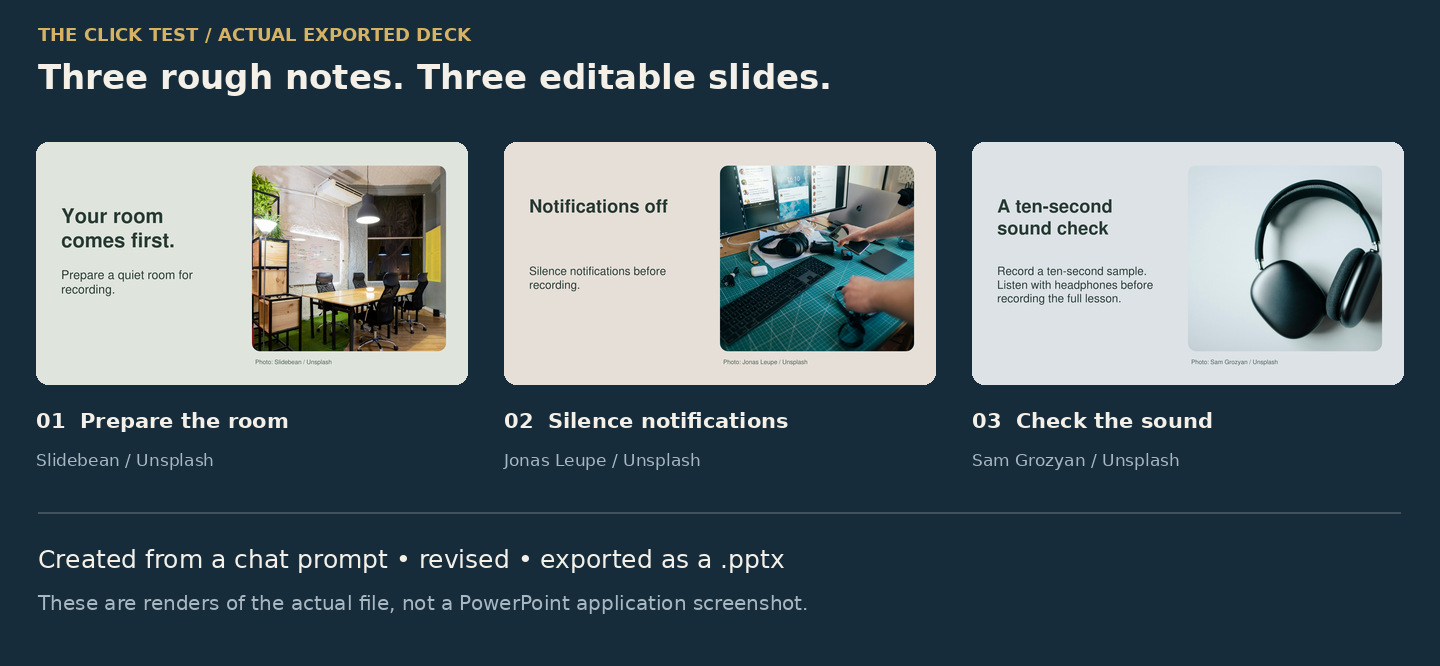
Open any lesson image to inspect it at full size. Use your browser’s Back button to return.
Our example is called Before You Record. The screenshots and exported slides below come from the October 18, 2026 test behind our video. They show what happened in that session; your wording, photographs and controls may differ.
Watch the walkthrough
Watch the ChatGPT Slides lesson on YouTube, then use the prompts and screenshots below at your own pace. The video is a narrated walkthrough of actual captures and saved results, rather than an uncut recording of every action.
Before you start: check your account
You need a ChatGPT account with Space and Slides enabled. Start in the web or desktop experience; this lesson does not assume a phone. Access depends on your plan, workspace and rollout. We are not presenting this as a free feature available to every account, and the prompt does not unlock missing access.
Use three short notes you are comfortable entering into ChatGPT. No source download, add-in or local installation is needed for the web exercise. PowerPoint is optional for the final application check. Normal account limits still apply; we did not run AI image generation or spend separate image-generation credits for this example.
OpenAI’s Space guide explains the supported creation and export routes. If you only receive a text outline, check whether an editable Space deck is available in your account before continuing.
1. Give the notes and the visual brief
In ChatGPT, submit the prompt below. It gives the content, slide count and style together. Asking for photographs, large editable text and a separate idea on each slide gives you something more useful to review than a wall of bullet points.
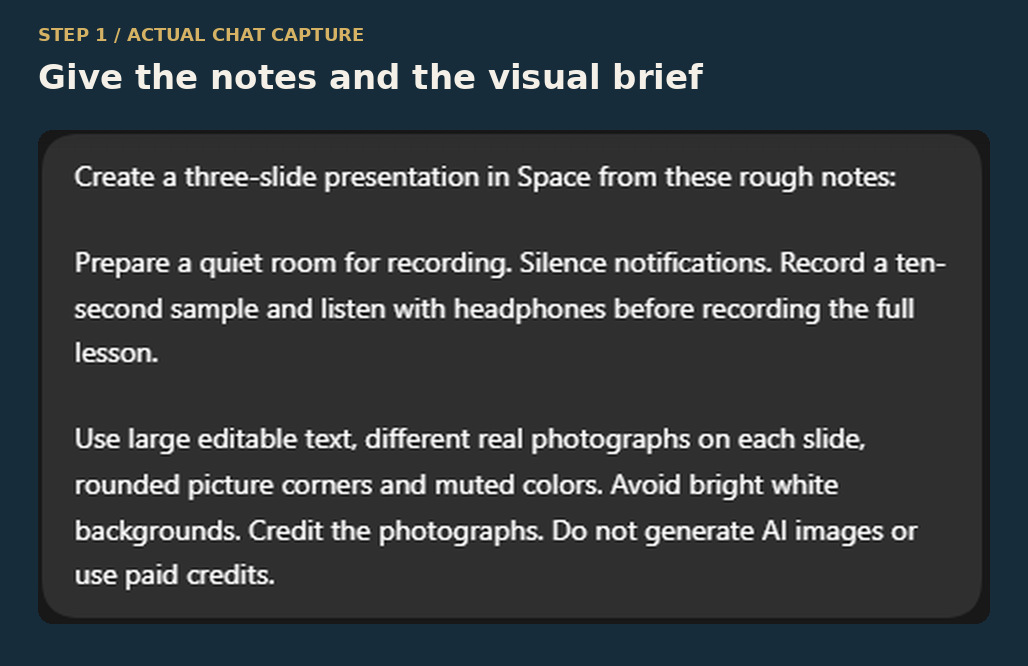
Create a three-slide presentation in Space from these rough notes:

Prepare a quiet room for recording. Silence notifications. Record a ten-second sample and listen with headphones before recording the full lesson.

Use large editable text, different real photographs on each slide, rounded picture corners and muted colors. Avoid bright white backgrounds. Credit the photographs. Do not generate AI images or use paid credits.
You can replace the middle paragraph with your own three notes. Keep the first exercise small. The instruction about credits asks for existing photographs rather than generated pictures; it is not a guarantee about all account usage or future costs.
2. Open the deck in Space
When ChatGPT returns the presentation card, choose Open. In our capture, the card is labeled Before You Record and the first slide appears in the editor beside the conversation. Check that you have an actual deck to review, rather than just a written outline.
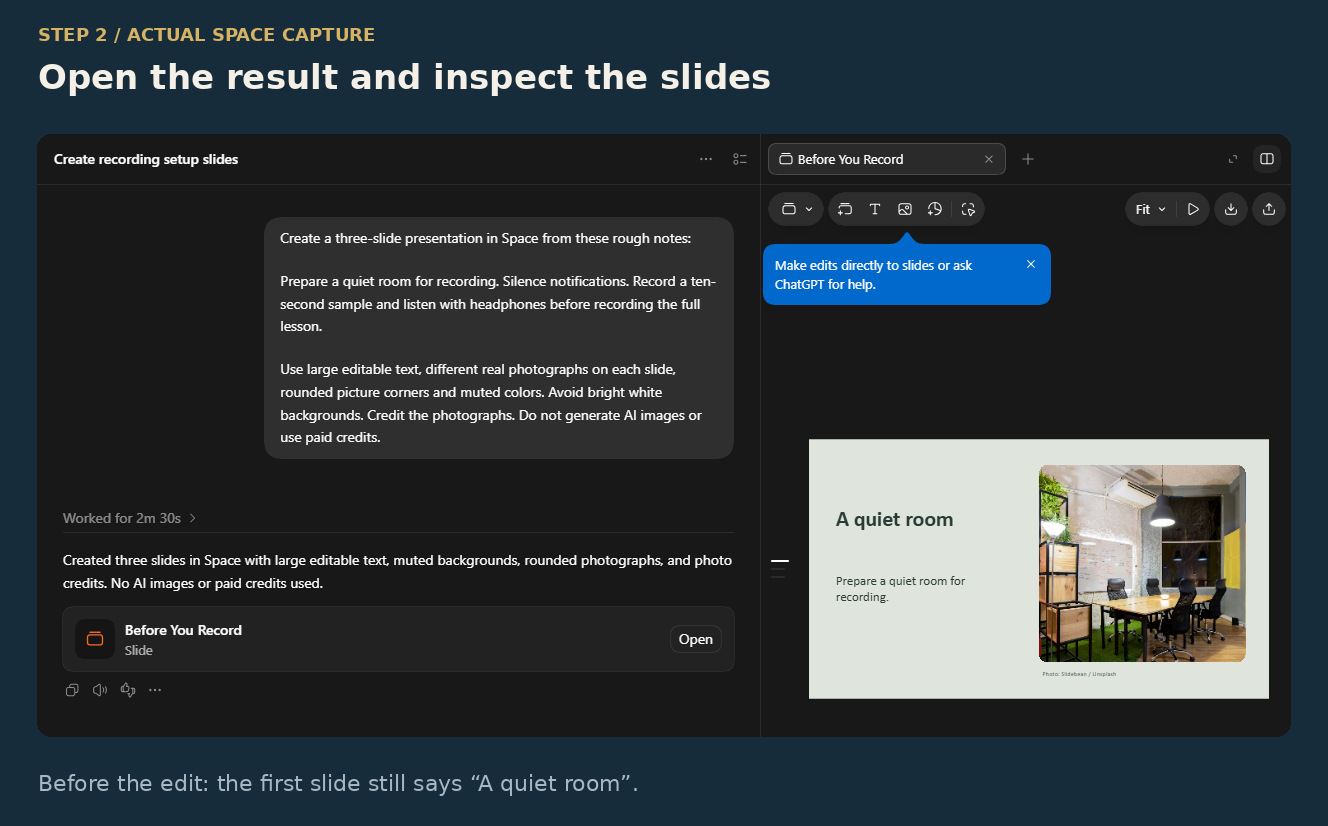
Look through all three slides. Our first version used A quiet room, Notifications off and A ten-second sound check. The displayed response says it created three slides, but the deck and saved file are the evidence to inspect. A confident completion message is not a substitute for opening the result.
3. Judge the pictures before polishing the words
Ask two simple questions: Can I read this quickly? Does the photograph actually support the point? Our first slide used a meeting-room photograph for a recording-room reminder. It fits the general room theme, but it is not a recording studio. For a studio-specific lesson, that image choice would need another pass.
Also check contrast, picture crops and credits. Our deck used pale muted backgrounds, not a dark studio design. “Muted” does not always mean “dark.” Review the actual result instead of assuming the style instruction was interpreted exactly as you imagined.
4. Change one headline and verify it
With the deck open, request one specific edit in the conversation:
On slide one, change A quiet room to Your room comes first. Keep the photograph, layout, and all other slides unchanged.
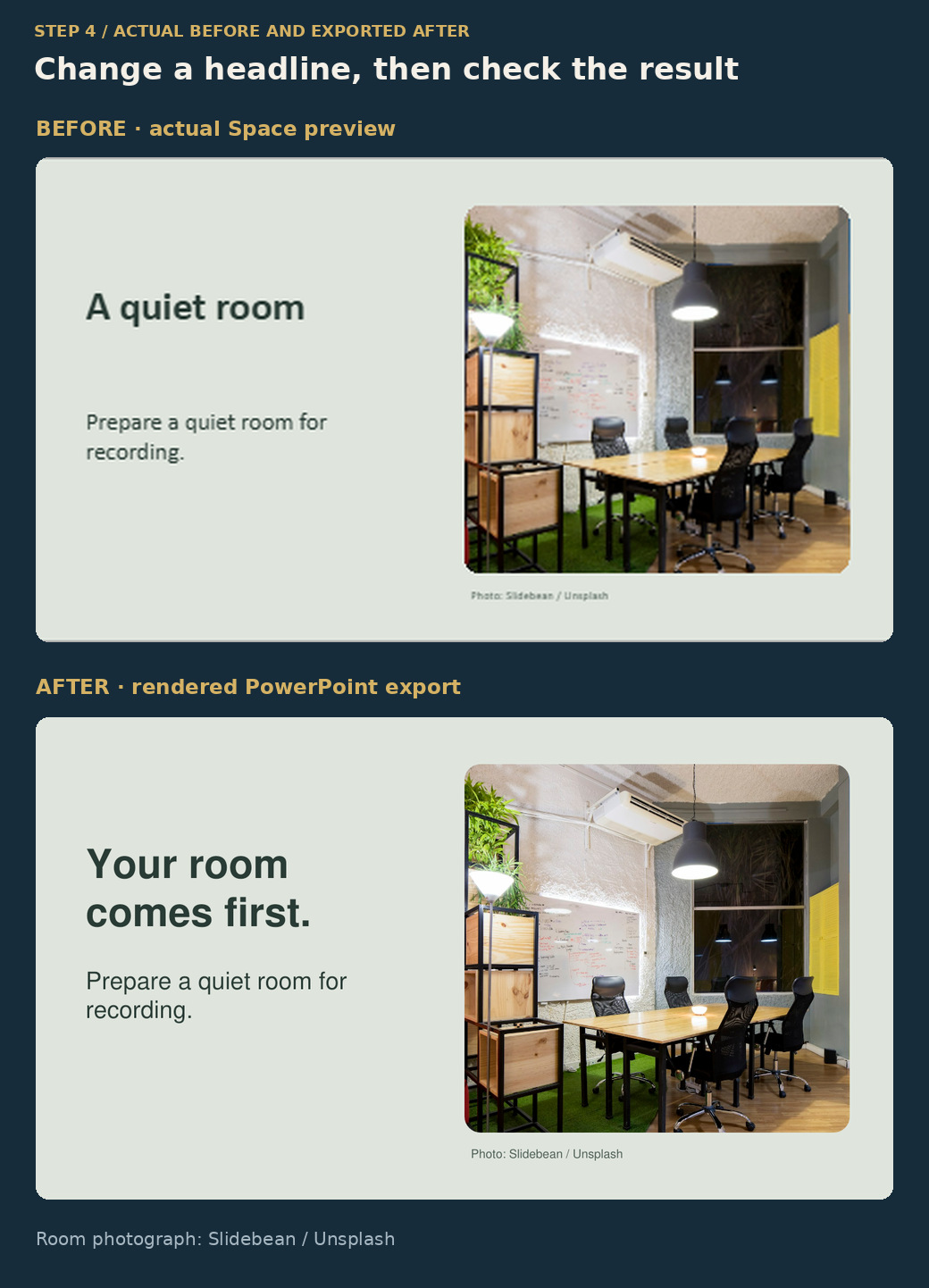
The original preview reads A quiet room. The exported first slide reads Your room comes first., including the final period. The room photograph and broad layout remain recognizable in the two views.
That is the confirmed change. We did not have a complete before-edit export to compare every object on the other slides, so we cannot certify that everything else stayed identical. In your own deck, look through the untouched slides too, especially when an instruction asks for only one change.
5. Export a PowerPoint copy
Use the deck’s download control. On the web, OpenAI documents a PowerPoint .pptx export. The desktop route can differ depending on installed apps. Choose the PowerPoint option when offered, save the file, then check that it is the revised version you intended to keep.
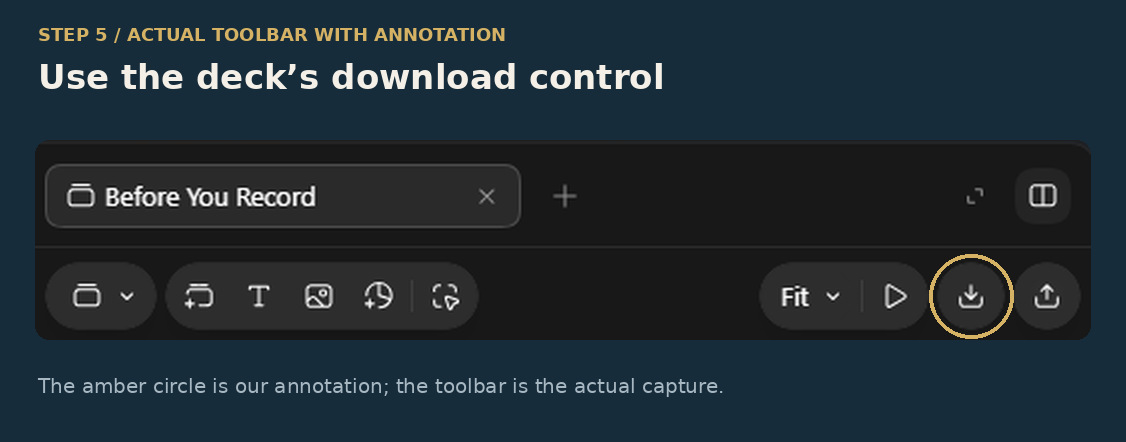
Our saved file is Before You Record.pptx. The toolbar screenshot identifies the control we used; it does not show every export-menu choice. Do not assume a PNG of a slide is the editable presentation. The file extension and its contents matter.
6. Check the saved file before sharing
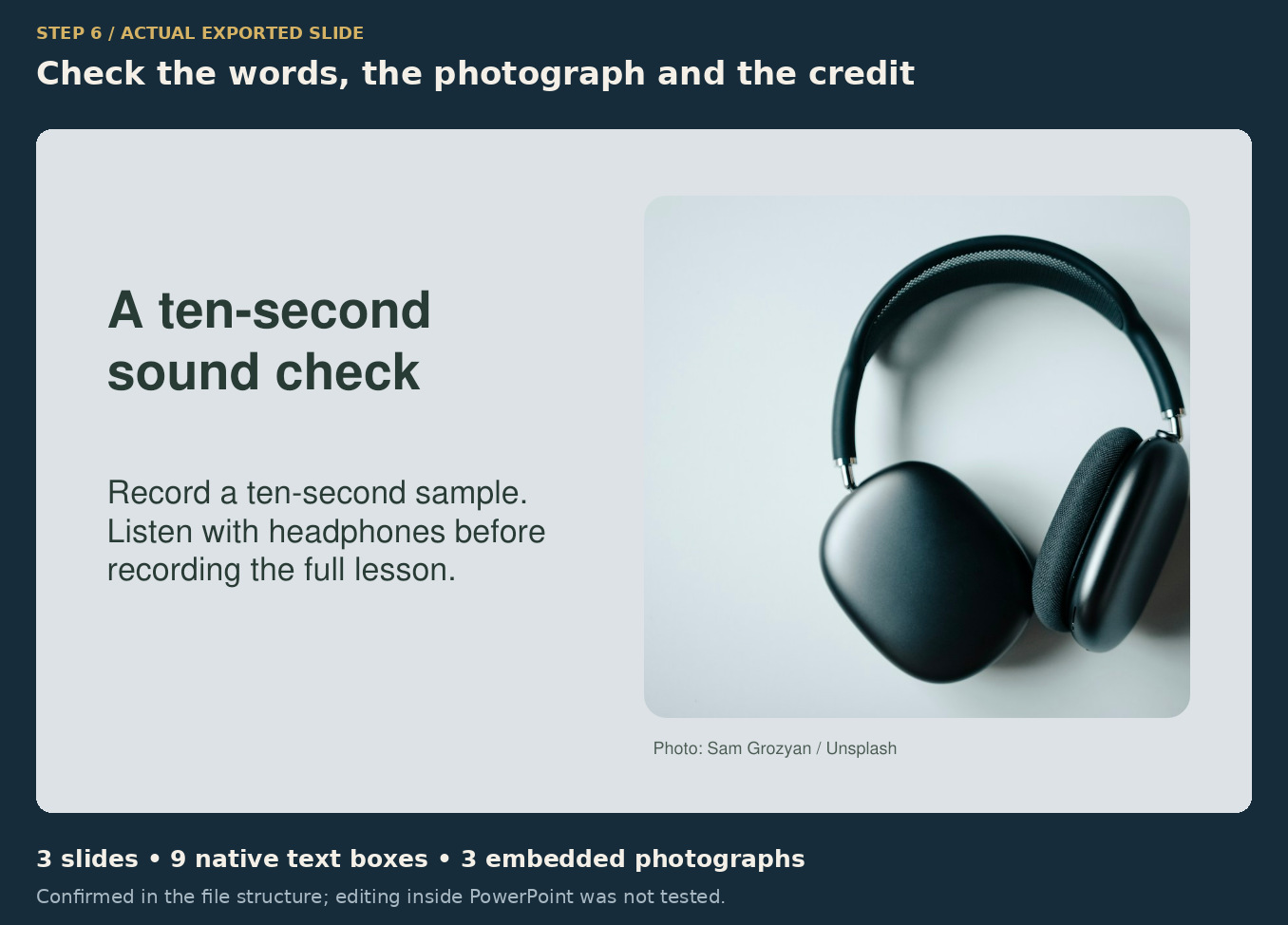
Our file inspection found three slides, nine native text boxes and three embedded photographs. The exported slides rendered with the updated headline and separate picture and text objects. That supports an editable file structure rather than a single flattened picture of each slide.
Editing inside the Microsoft PowerPoint application was not tested. For your final check, open the .pptx in your usual presentation app, confirm all three slides appear, select a text box and try a small edit in a copy. Then inspect the fonts, wrapping, photo crops and credits. This is the next check for the viewer, not a result we are claiming to have performed.
What this test actually proves
The ordinary chat prompt produced a three-slide Space presentation, one headline revision appeared in the exported file, and the PowerPoint package contained separate text and image objects. The pictures and styling still needed human judgment. That makes this a practical starting workflow for a small lesson or meeting deck—not a reason to skip the review.
For the earlier launch announcement and our separate native-editor diagram test, see ChatGPT Slides: the original news report.
Sources and credits: OpenAI’s Space creation and export guide, checked October 18, 2026; The Click Test’s actual screenshot and exported presentation. Deck photographs: Slidebean / Unsplash, Jonas Leupe / Unsplash and Sam Grozyan / Unsplash. Captures are cropped for privacy. Comparison layouts and the amber control circle are editorial annotations; exported slide images are file renders, not PowerPoint application screenshots.