

Filed under: AI & Codex Tools · YouTube Tests & Guides
Updated October 10, 2026. Need a thumbnail direction while setting up a video? In this walkthrough, Ask Studio—the Gemini assistant shown in YouTube Studio—takes a short request about the selected video and returns a thumbnail concept with a design note. Think of it as a first sketch to review; you still decide whether it fits.
Before you begin
Open the video’s Details screen in YouTube Studio. The lesson starts with a video already selected. Ask Studio is visible in the demonstration account, but the recording does not explain who has access or how availability is decided.
Make a thumbnail concept with Ask Studio
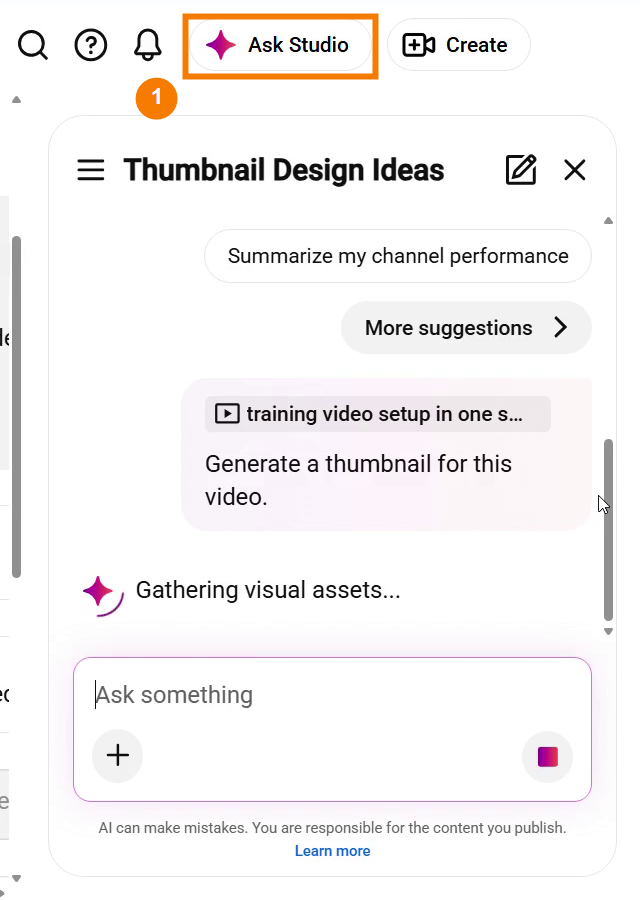
1. Open Ask Studio from the video Details screen
On the Details screen, look near the upper-right corner for Ask Studio and select it. The assistant opens in a panel on the right, beside the video details. The recorded segment starts with that panel already open, so it does not show the click itself; the screenshot points out where the button is.
2. Ask for a thumbnail idea for this video
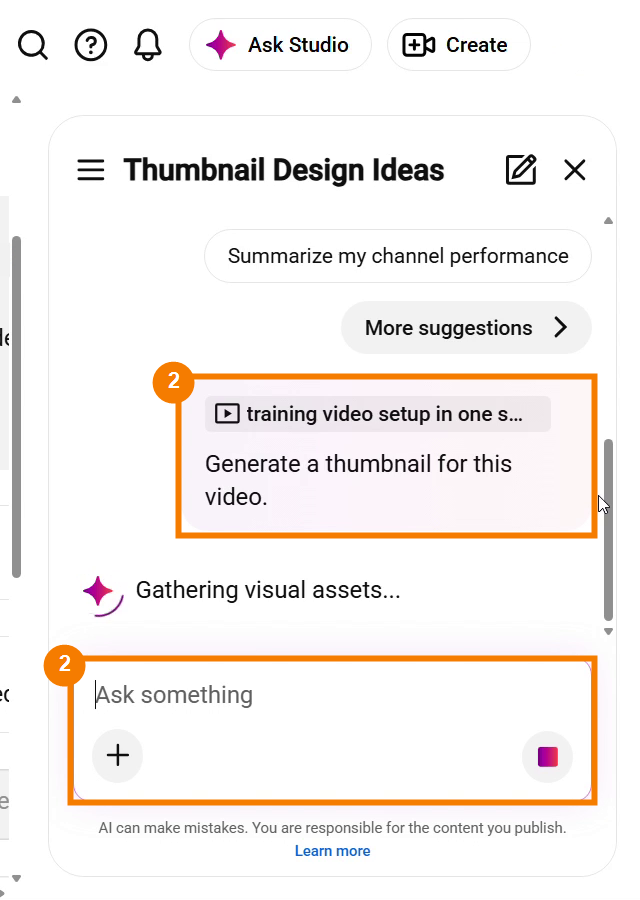
At the bottom of the panel, select Ask something, enter Generate a thumbnail for this video.
, and send it. The recording shows the submitted request and a “Gathering visual assets…” message, then moves on to the result. It does not show the prompt being typed or sent.
3. Review the image and its design note
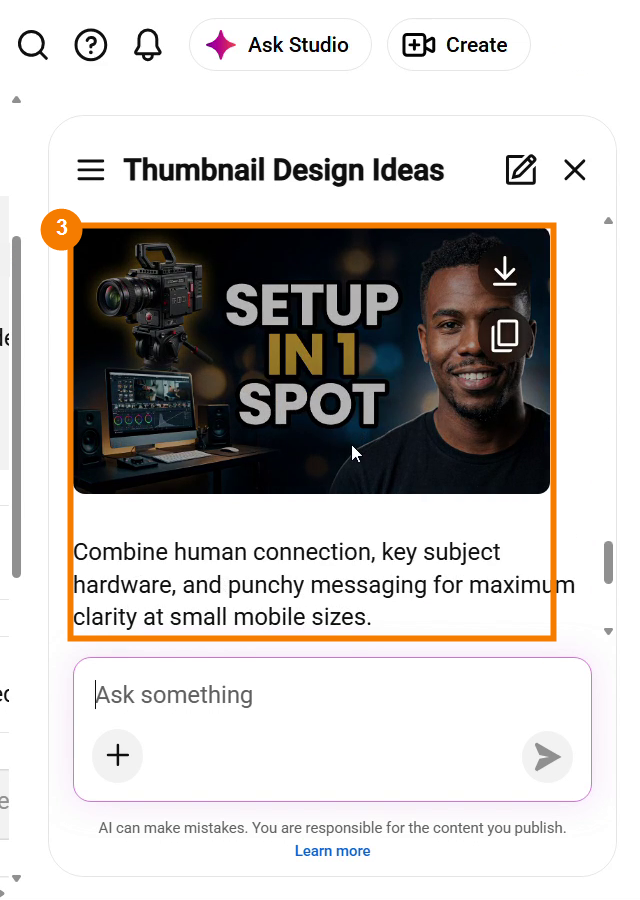
When the result appears, look at both the thumbnail concept and the explanation underneath. In this example, the concept uses a camera, an editing setup, and a presenter. The note says to combine a human connection, key subject hardware, and clear messaging that reads at small sizes. Ask whether those choices actually fit your video. If not, the narrator suggests asking for a different direction or using the concept only as a starting point.
Give the idea a quick reality check
- Does it match the video? Remove anything that suggests a subject, promise, or result the video does not contain.
- Can you understand it small? Shrink the preview and see whether the main subject still stands out.
- Would you use this direction? Gemini offers a suggestion. You can refine it, use it for inspiration, or set it aside.
What this walkthrough does—and does not—show
The demonstration shows Ask Studio responding to Generate a thumbnail for this video
with a concept and a short rationale. The narration says the assistant uses the open video’s context and that you can ask for another direction.
The video does not show downloading the generated image, applying it in the video’s thumbnail slot, or saving it as the final thumbnail. It also does not show opening Ask Studio or typing and sending the prompt; those actions are already complete when the relevant footage begins. This lesson stops at reviewing the concept, so it does not imply that the preview automatically becomes your published thumbnail.
If Ask Studio is not on your screen
The recording shows the button in its demonstration account, but it does not establish why it may be missing from another account or show a setting that turns it on. Don’t go hunting through unrelated menus based on this video alone. Use the thumbnail options available in your Studio screen, or revisit this workflow if Ask Studio becomes available to you.
One last check
Ask Studio can help you get past a blank page and suggest a visual direction. You still need to check that the idea represents your video, reads clearly, and can be applied using the options available in your account. The best thumbnail idea is the one that tells the truth about the video.
Watch the full lesson
The written steps come first. Here is the complete demonstration: