
Chrome can put two sites side by side, make crowded tabs easier to scan, mark up a PDF, and simplify a long article. We tested these four features in Chrome 151 on Windows 11, then checked what actually worked.
1. Compare two websites with Split View
Use it when: you need two pages visible at once without switching tabs.
- Open both pages in separate tabs in the same Chrome window.
- Right-click the tab for the second view. Select New split view with current tab. If Chrome warns that moving a tab will affect a saved group, use an ungrouped tab or cancel the change.
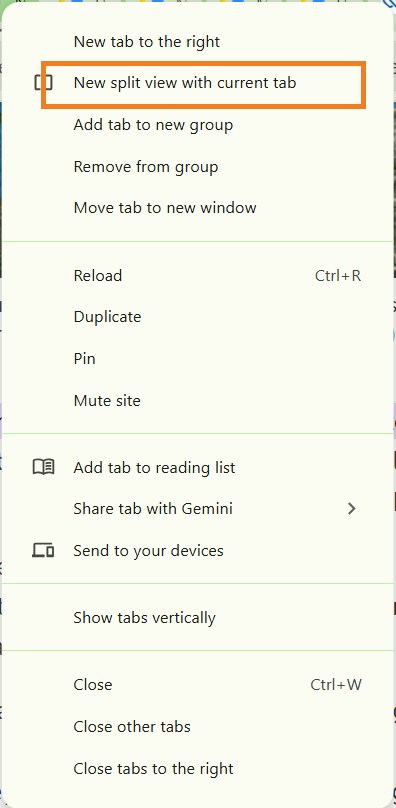
Figure 1. Select the outlined Split View command in the tab menu. - Drag the divider to give either page more room. When finished, use the split controls to separate or rearrange the views.
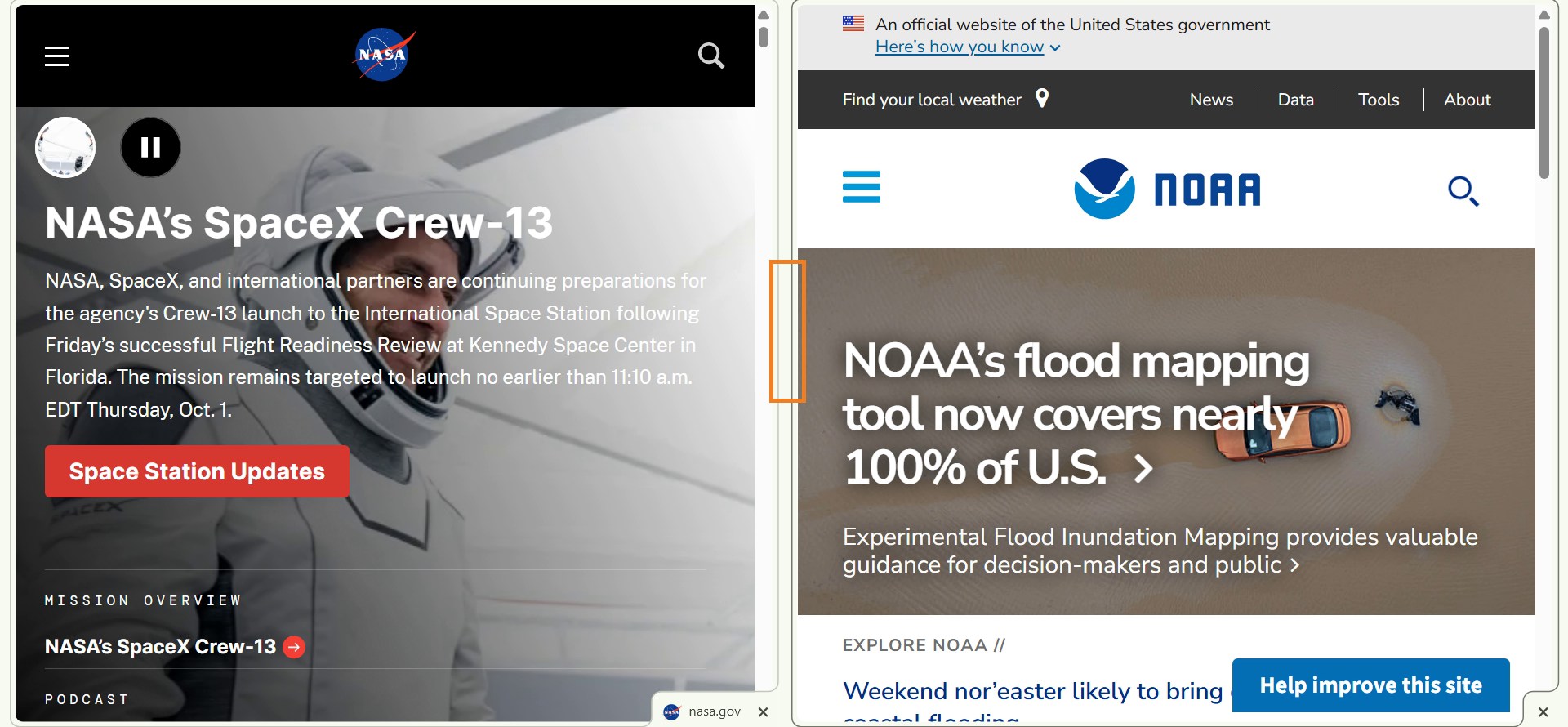
Figure 2. Both pages stay visible; the marked divider changes their widths.
Test result: Both sites stayed in one window. The narrower page rearranged its layout, so Split View shares screen space rather than adding more.
2. Find pages with Vertical Tabs
Use it when: too many tabs make their titles hard to identify.
- Right-click a tab and choose Show tabs vertically.
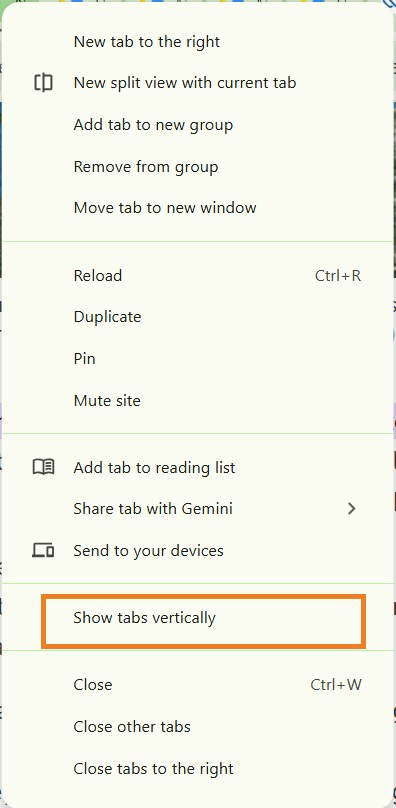
Figure 3. Switch the tab strip into a vertical list. - Select a page from the side list. Collapse the sidebar to recover page width; expand it when you need to read tab names.
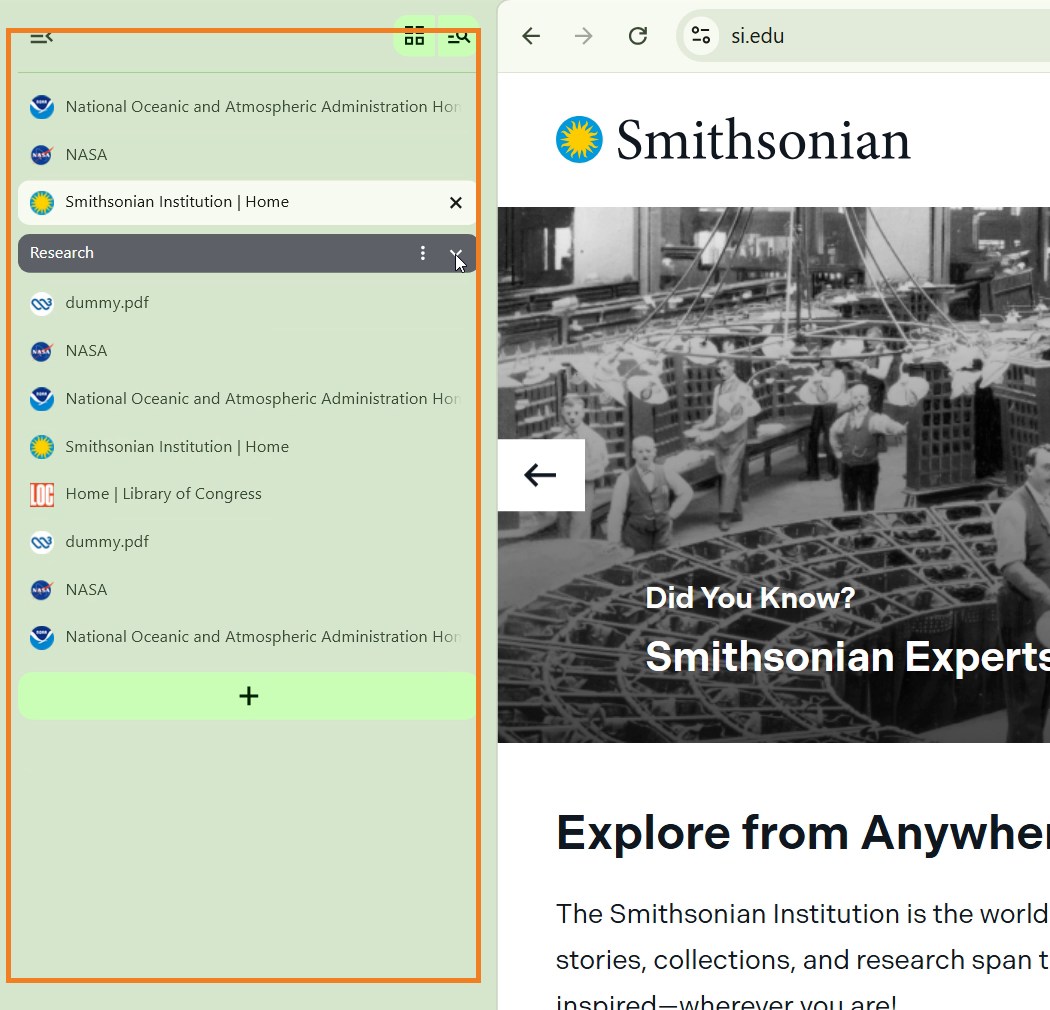
Figure 4. Longer titles are easier to scan, although the sidebar uses some width. - To return to the top strip, right-click a tab and choose Show tabs horizontally.
Test result: The side list helped identify open pages. With only a few tabs, the horizontal strip may be simpler.
3. Mark a PDF and verify the Drive copy
Use it when: you want a PDF copy with a basic highlight or drawn mark that survives saving.
- Open a sample PDF in Chrome. In the PDF toolbar, choose the pen or highlighter, pick a color, and mark the page.
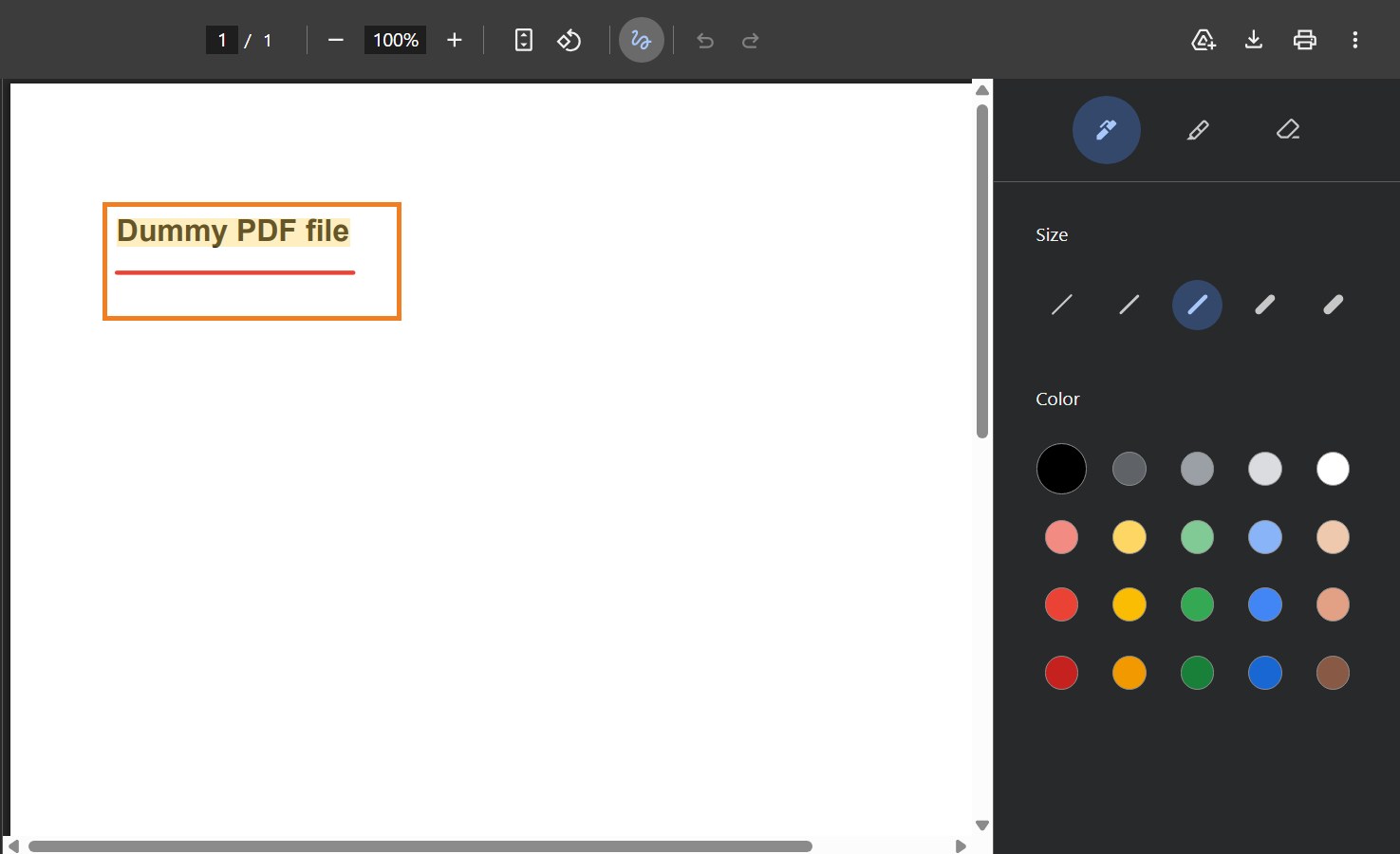
Figure 5. The test marks are visible beside Chrome’s drawing tools. - Choose Download → With your changes. Reopen the downloaded copy to check that the marks remain.
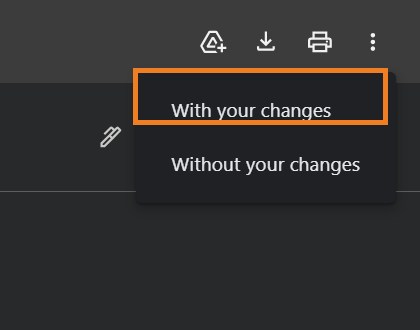
Figure 6. Save the version that includes your changes. - For the Drive test, use the Drive icon in the PDF toolbar, select an available account, and save. The test found the file in Saved from Chrome.
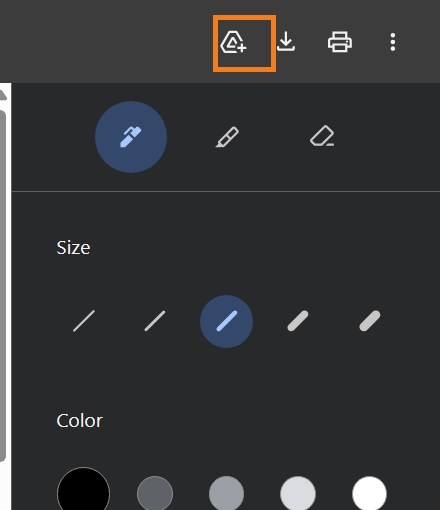
Figure 7. The outlined button sends this PDF to Drive. - Find and open the Drive copy. Confirm that the same marks are still visible.
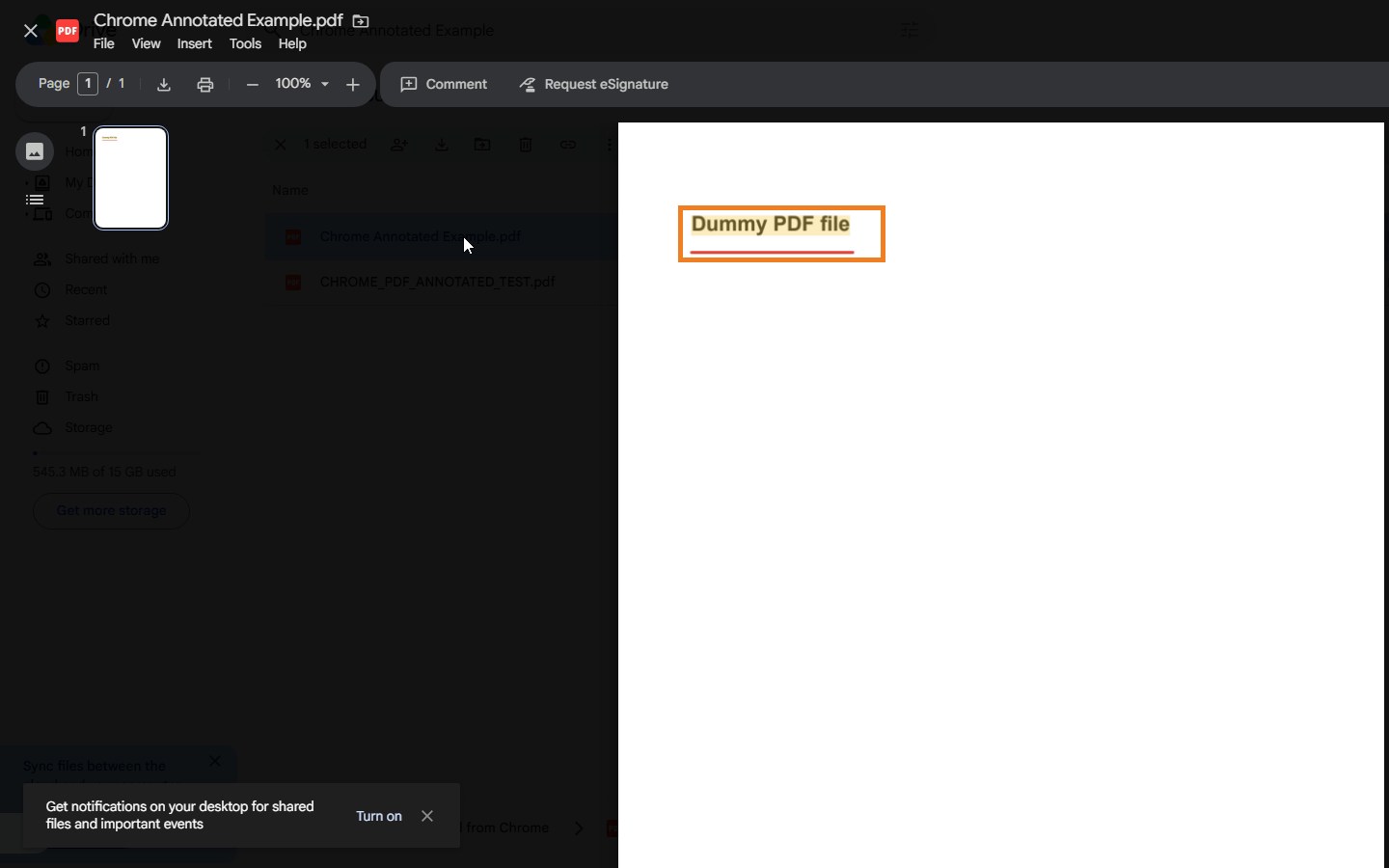
Figure 8. The reopened Drive copy retained the highlight and line.
Test result: The marks survived saving and reopening. The tested toolbar did not show Add Text; these controls are not a full PDF editor. Drive saving was tested for this PDF, not for every kind of download.
4. Read a page with less clutter
Use it when: navigation and other page elements distract from an article.
- Open an article and start Chrome Reading Mode. In the recorded Windows test, Alt+Shift+R opened the reader.
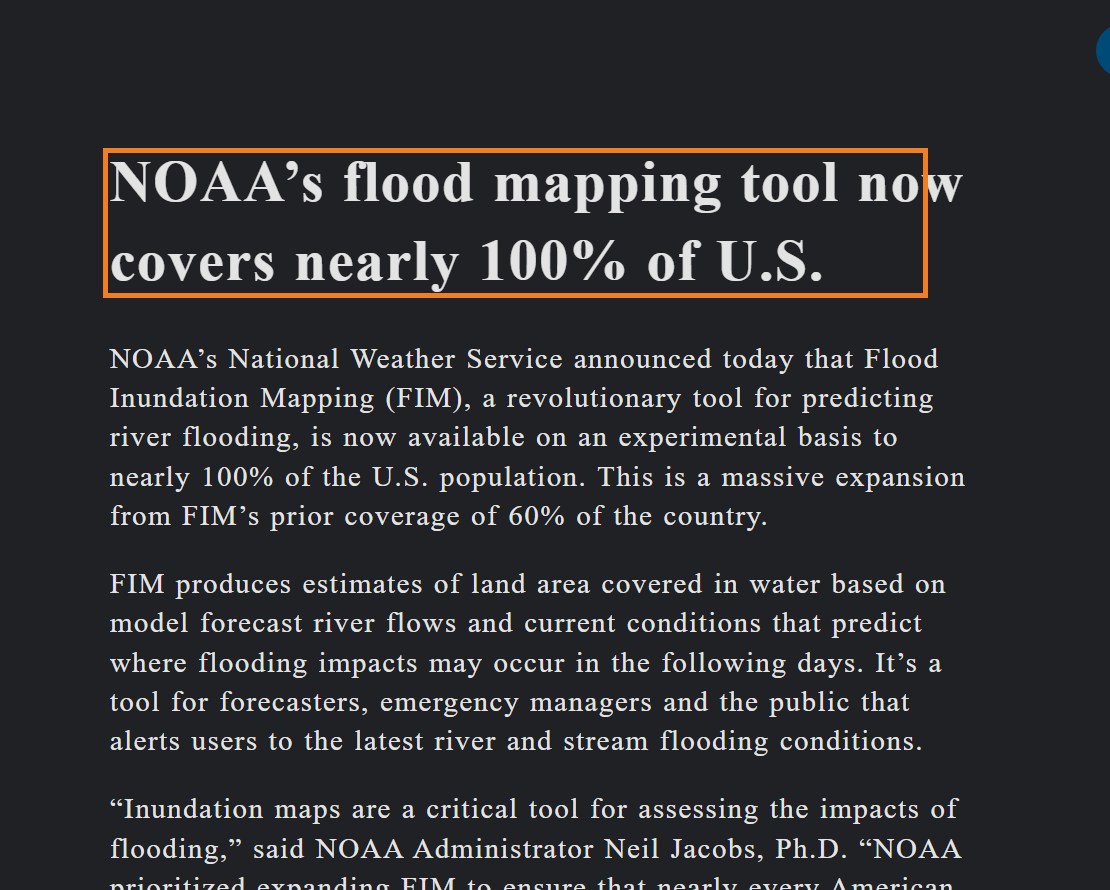
Figure 9. Reading Mode presents the article in a simpler view. - Open the gear menu to change theme, font, line height, or letter spacing. Toggle images if a text-only view helps.
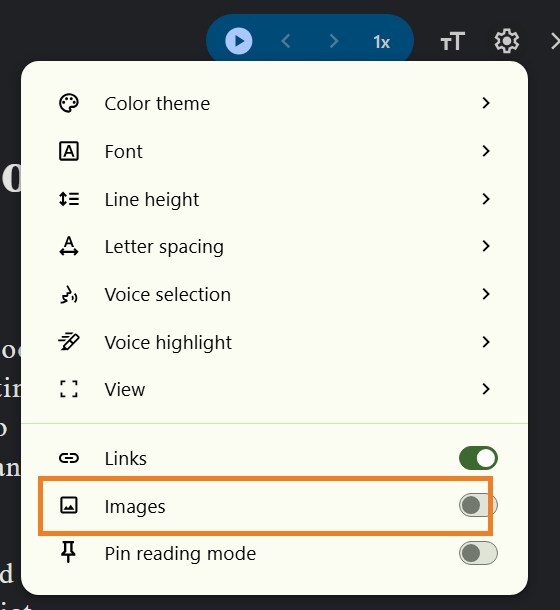
Figure 10. The outlined Images switch is one of the reading controls. - Close the reader to return to the page. Use the side-panel option under View if you want to compare the reading view with the original.
Test result: The tested article was easier to focus on. Extraction varies by website; we did not test every page or verify read-aloud behavior.
Watch the recorded test
The video shows the four features in the same Windows test described above.
Published by The Click Test · 4 minutes 42 seconds.
Troubleshooting and limits
- No Split View option: Check the tab’s context menu in the same window. Menus and rollout can vary; avoid moving a saved tab group unintentionally.
- A split page looks cramped: Drag the divider or separate the views. Sites can rearrange at narrow widths.
- Vertical Tabs use too much space: Collapse the list or restore the top strip.
- PDF marks disappear: Save With your changes, then reopen that copy to verify it. Keep the original until you have checked.
- Need to type into a PDF: The tested toolbar lacked Add Text. Use a PDF editor for work beyond the observed pen, highlighter, and eraser.
- Reading Mode misses content: Try a different article; extraction depends on the page.